
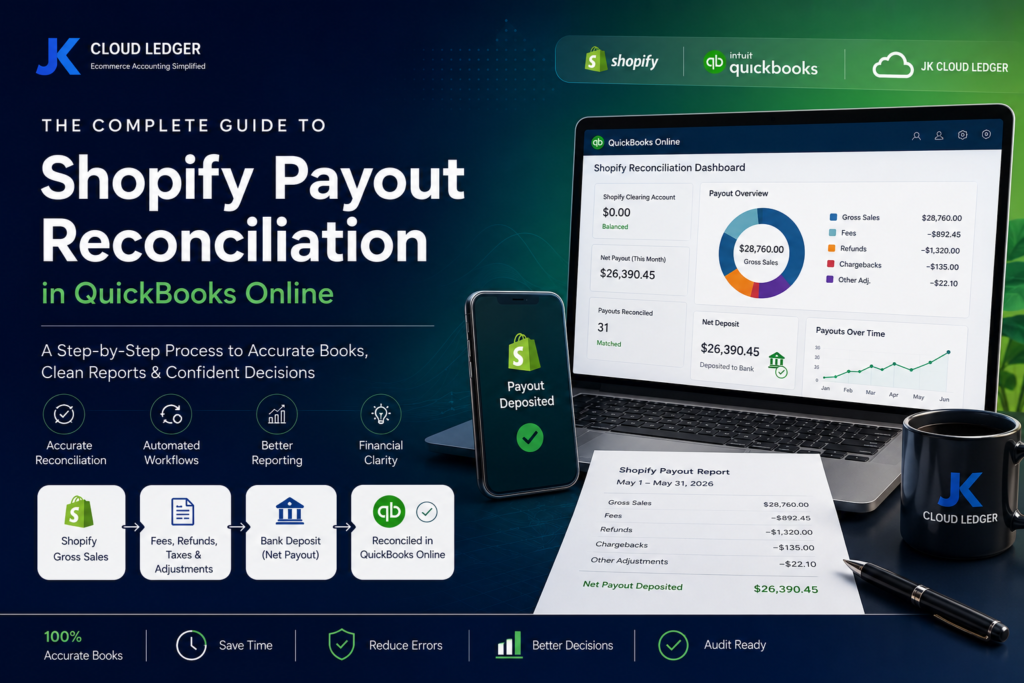
Shopify Payout Reconciliation: How to Match Payouts to Sales in QuickBooks (2026)
(Why your Shopify bank deposits rarely match your sales—and how proper payout reconciliation keeps your books accurate.)
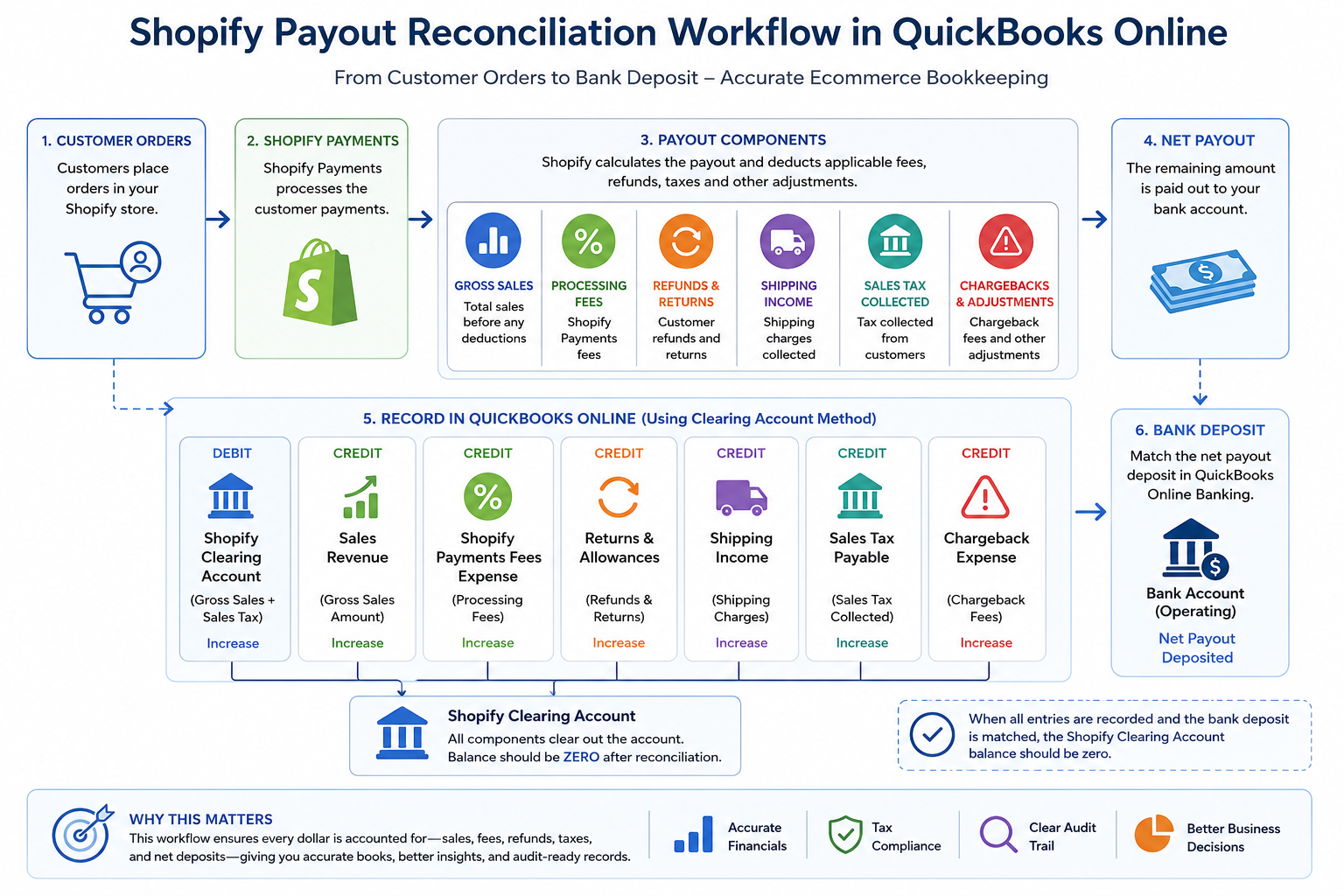
Every Shopify payout contains multiple financial components. Reconciling gross sales, processing fees, refunds, sales tax, shipping income, and the final net deposit through a Shopify Clearing Account helps ensure accurate bookkeeping and reliable financial reporting in QuickBooks Online.
Key Takeaways
- Record Gross Sales First: Never record the Shopify payout as sales revenue. Always recognize gross sales separately before accounting for deductions.
- Use a Shopify Clearing Account: A dedicated clearing account bridges the gap between customer payments and the final bank deposit, making reconciliation significantly easier.
- Reconcile Using Shopify Payout Reports: Match every payout against Shopify’s detailed settlement reports, including processing fees, refunds, taxes, shipping charges, and adjustments.
- Maintain Accurate Financial Statements: Proper payout reconciliation prevents overstated or understated revenue while improving Profit & Loss reporting, Balance Sheet accuracy, and tax compliance.
- Automate as Your Store Grows: Businesses processing higher transaction volumes can streamline reconciliation using ecommerce accounting automation tools such as A2X or Link My Books, integrated with QuickBooks Online.
Why Your Shopify Payout Never Matches Your Sales
(Understanding the difference between gross sales and the net amount deposited into your bank account.)
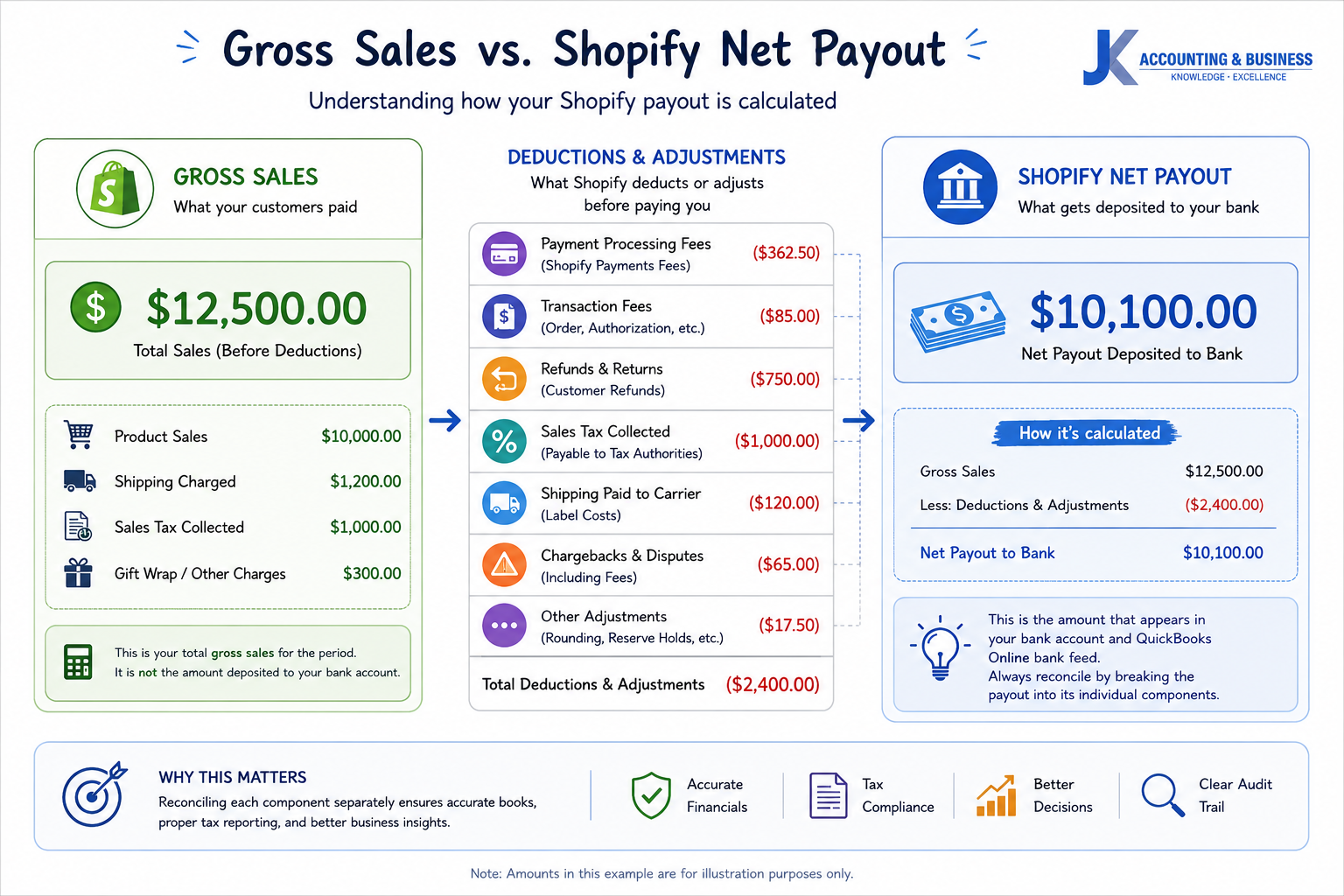
A Shopify payout is the net amount deposited into your bank account after payment processing fees, refunds, sales tax, shipping income, chargebacks, and other adjustments have been applied to your gross sales.
| Transaction Component | Amount (USD) | Impact on Payout |
|---|---|---|
| Gross Sales | $10,000.00 | Starting balance |
| Shopify Payments Processing Fees | -$320.00 | Deduction |
| Customer Refunds | -$450.00 | Deduction |
| Sales Tax Collected | -$700.00 | Liability collected on behalf of tax authorities |
| Shipping Income | +$250.00 | Addition |
| Chargeback Fees | -$75.00 | Deduction |
| Net Shopify Payout | $8,705.00 | Final bank deposit |
Accounting Tip
Never record your Shopify bank deposit as sales revenue. Instead, record your gross sales first, then separately recognize payment processing fees, refunds, taxes, shipping income, and other adjustments. Finally, reconcile the net payout against your Shopify Clearing Account to ensure your QuickBooks Online records accurately reflect both revenue and cash received.What’s Actually Inside a Shopify Payout?
(A breakdown of every transaction that contributes to your final Shopify bank deposit.)
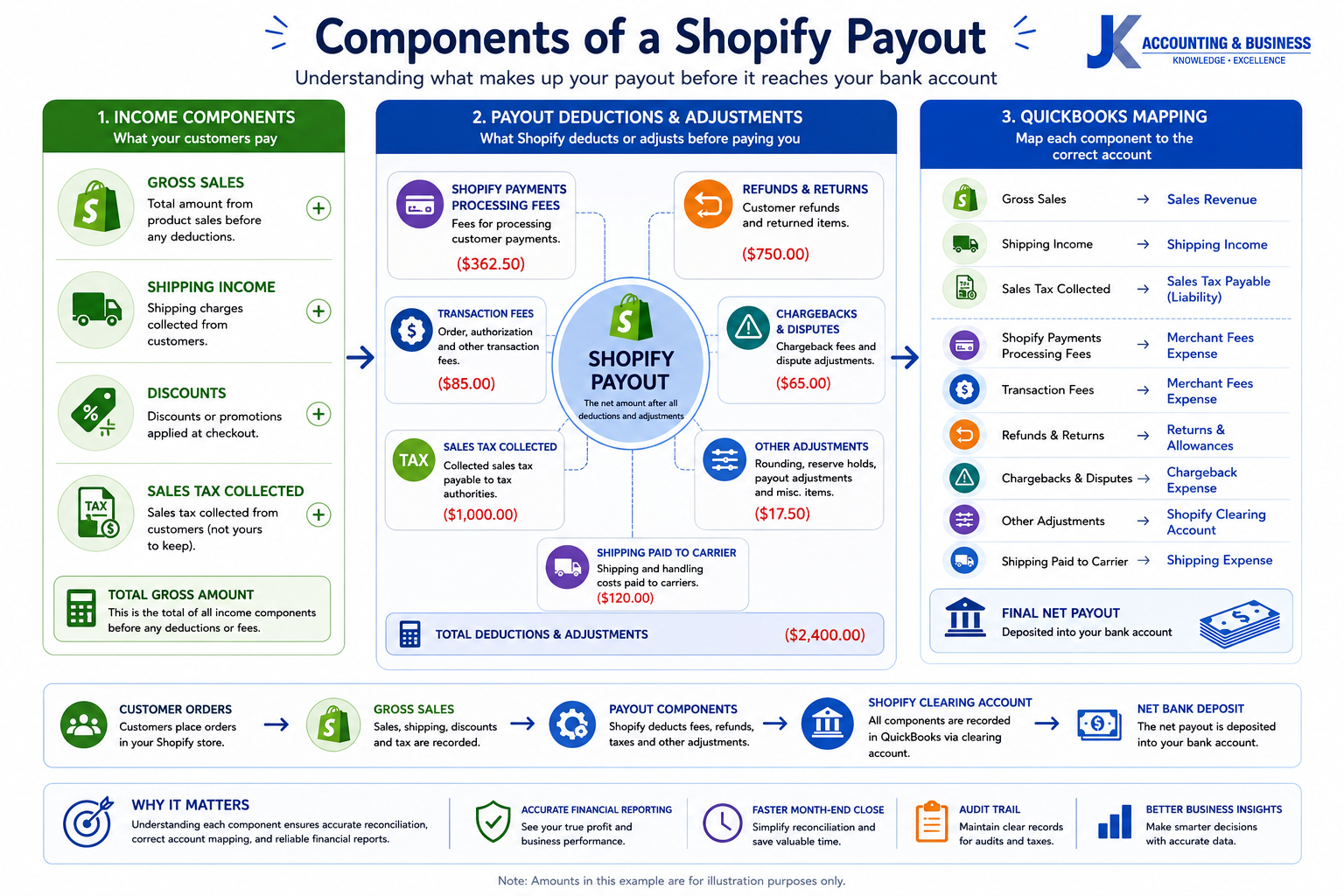
Every Shopify payout consists of multiple financial components—including gross sales, shipping income, sales tax, refunds, processing fees, chargebacks, and other adjustments—that should each be mapped to the correct QuickBooks account for accurate reconciliation and financial reporting.
| Shopify Payout Component | Description | Impact on Payout | Recommended QuickBooks Account |
|---|---|---|---|
| Gross Sales | Total product sales before any deductions. | Increases | Sales Revenue (Income) |
| Shipping Income | Shipping fees collected from customers. | Increases | Shipping Income (Income) |
| Sales Tax Collected | Tax collected on behalf of government authorities. | Increases | Sales Tax Payable (Current Liability) |
| Discounts | Coupons, promotional discounts, and automatic price reductions. | Decreases | Discounts Given (Contra Revenue) |
| Customer Refunds | Money returned for cancelled or returned orders. | Decreases | Returns & Allowances (Contra Revenue) |
| Chargebacks | Payments reversed following customer disputes. | Decreases | Chargeback Expense |
| Shopify Payments Processing Fees | Credit card processing and payment gateway fees charged by Shopify. | Decreases | Merchant Processing Fees (Expense) |
| Adjustments | Manual corrections, reserve releases, currency adjustments, or other settlement items. | Varies | Miscellaneous Income / Expense |
Definition
A Shopify payout is the net amount transferred to your business bank account after Shopify Payments has applied processing fees, refunds, discounts, taxes, chargebacks, shipping adjustments, and any other settlement activities. Because these transactions affect different accounts in your general ledger, each one should be recorded separately in QuickBooks Online before the final payout is reconciled.How to Find and Read Your Shopify Payout Report
(Locate your payout details, understand every column, and export the data for accurate QuickBooks reconciliation.)
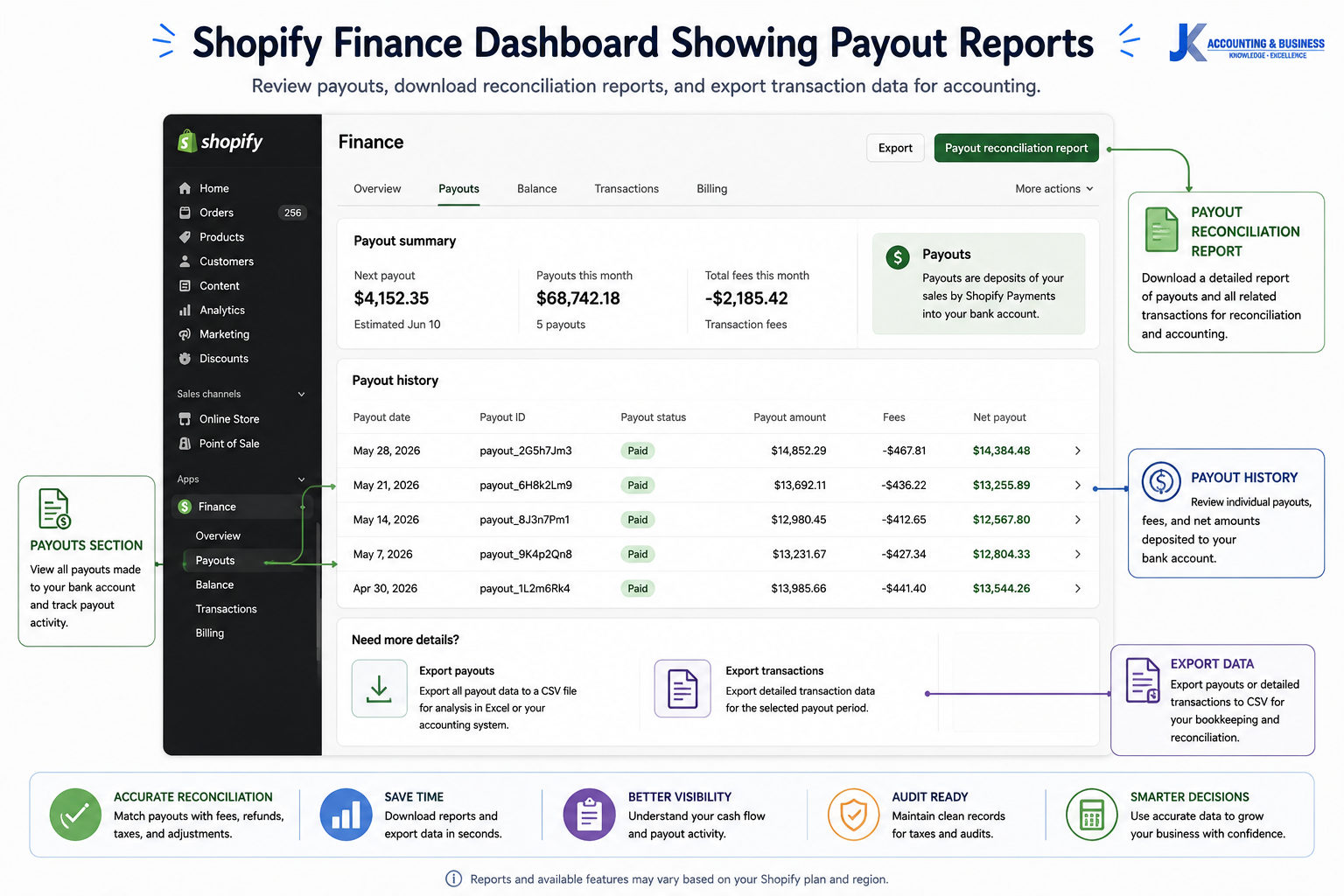
The Shopify Finance dashboard allows you to review individual payouts, download reconciliation reports, and export detailed transaction data for accounting purposes.
Step 1: Open the Shopify Payout Report
- Log in to your Shopify Admin.
- Navigate to Finance.
- Select Payouts and choose View Payouts.
- Review the list of completed and scheduled payouts.
- Click the payout date you want to reconcile to view its detailed transaction summary.
Step 2: Access the Payout Reconciliation Report
- Go to Finance in your Shopify Admin.
- Select Documents.
- Open the Payout Reconciliation Report.
- Review the complete breakdown of every transaction included in the selected payout period.
Understanding the Shopify Payout Report Columns
| Column | What It Shows | Why It Matters |
|---|---|---|
| Type | Sale, Refund, Fee, Adjustment, Chargeback, etc. | Identifies the nature of each transaction. |
| Date | Date the transaction was processed. | Helps match transactions to the correct accounting period. |
| Order ID | Associated Shopify order number. | Useful for tracing individual customer transactions. |
| Gross Amount | Total value before deductions. | Represents your actual sales revenue. |
| Fees | Shopify Payments processing fees. | Should be recorded as Merchant Processing Fees. |
| Net Amount | Amount after deductions. | Contributes to the final payout deposited into your bank account. |
| Currency | Transaction currency. | Important for businesses selling internationally. |
Export Your Shopify Payout Report
- Select the payout period you want to reconcile.
- Export the report in CSV format whenever available.
- Verify that the report dates match your bank deposit period.
- Retain exported reports for audit and tax documentation.
Pro Tip
Always reconcile using the detailed payout report rather than relying solely on the payout summary. The detailed report includes transaction-level information that allows you to accurately map sales, processing fees, refunds, taxes, and other adjustments to their correct QuickBooks accounts, reducing reconciliation errors and improving financial reporting.How to Find and Read Your Shopify Payout Report
(Locate your payout details, understand every transaction, and prepare the data for accurate reconciliation in QuickBooks Online.)
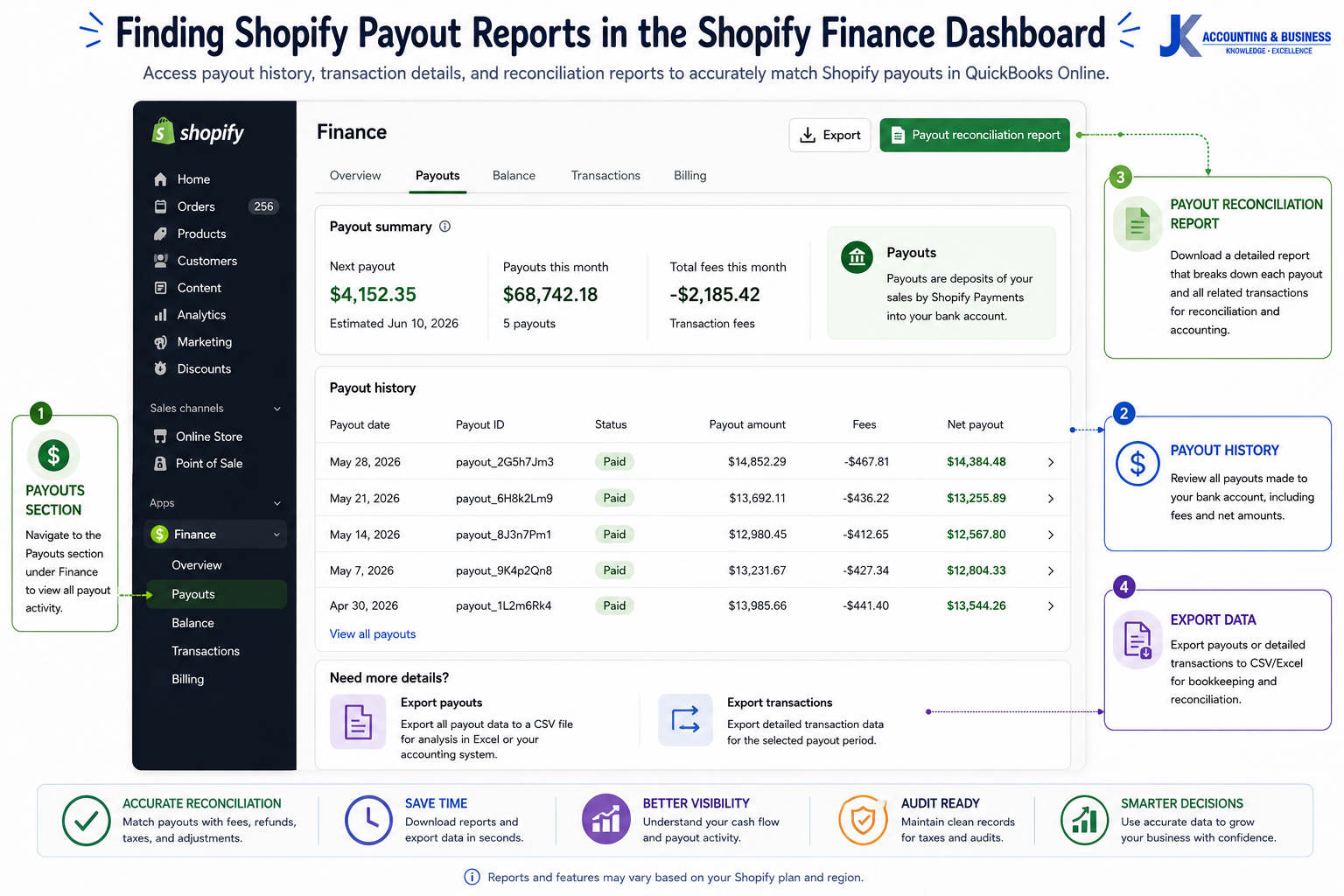
The Shopify Finance dashboard provides access to payout history, detailed transaction records, and payout reconciliation reports, helping ecommerce businesses accurately reconcile Shopify payouts in QuickBooks Online.
Step 1: Navigate to Your Shopify Payouts
- Log in to your Shopify Admin.
- Select Finance from the left-hand navigation menu.
- Open the Payouts section and click View Payouts.
- Review the list of completed and upcoming payouts.
- Select the payout date you want to reconcile to view its transaction details.
Step 2: Open the Payout Reconciliation Report
- Navigate to Finance.
- Click Documents.
- Select the Payout Reconciliation Report.
- Review the detailed transaction list for the selected payout period.
Understanding the Shopify Payout Report Columns
| Column | Description | Why It Matters |
|---|---|---|
| Type | Identifies whether the transaction is a Sale, Refund, Fee, Adjustment, Chargeback, or another activity. | Helps classify each transaction correctly in QuickBooks. |
| Date | The date the transaction was processed. | Ensures transactions are recorded in the correct accounting period. |
| Order ID | The Shopify order number associated with the transaction. | Makes it easy to trace customer orders during reconciliation. |
| Gross Amount | The total transaction value before any deductions. | Represents your true sales revenue. |
| Fees | Shopify Payments processing fees deducted from the transaction. | Should be posted to Merchant Processing Fee expense accounts. |
| Net Amount | The remaining value after fees and adjustments. | Forms part of the final Shopify payout deposited into your bank account. |
| Currency | The transaction currency. | Important for businesses selling internationally or using multi-currency settlements. |
Export the Report for Reconciliation
- Export the detailed transaction report rather than relying only on the payout summary.
- Select a date range that matches the payout period shown in Shopify.
- Use the CSV format for easier analysis and integration with accounting tools.
- Retain exported reports as supporting documentation for audits and tax reporting.
Pro Tip
The payout summary tells you how much Shopify deposited, but the detailed payout report explains why that amount was deposited. Always reconcile using the detailed report so every sale, refund, processing fee, tax, shipping charge, and adjustment is recorded in the correct QuickBooks account.Step-by-Step: Reconciling a Shopify Payout in QuickBooks Online
(A practical workflow for recording every Shopify transaction accurately before matching the final bank deposit.)
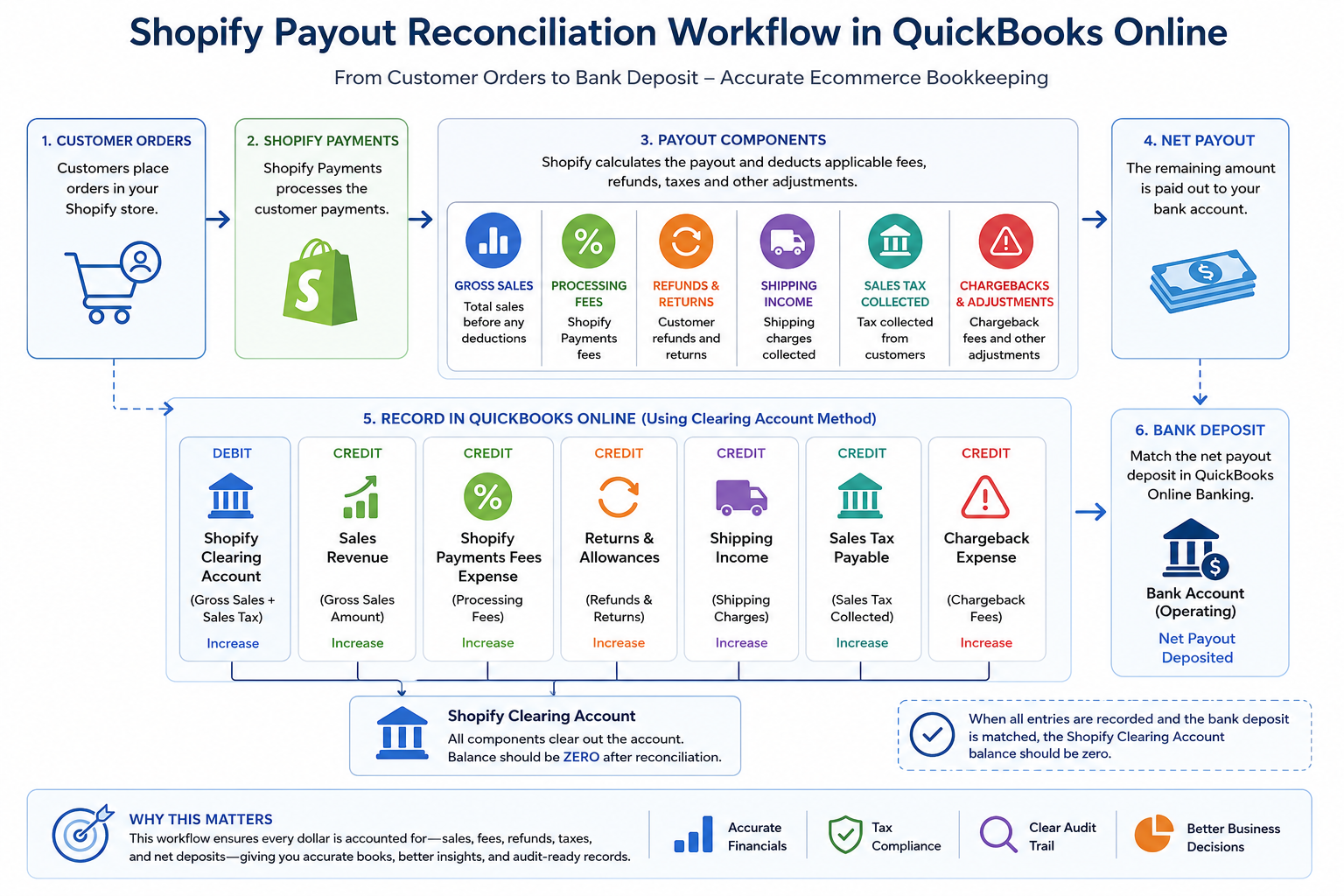
A typical Shopify payout reconciliation records every transaction separately before matching the final bank deposit against the Shopify Clearing Account.
Step 1: Record Gross Sales and Sales Tax
- + New → Journal Entry
- Alternatively, use a Sales Receipt if it aligns with your accounting workflow.
- Debit Shopify Clearing Account
- Credit Sales Revenue
- Credit Sales Tax Payable
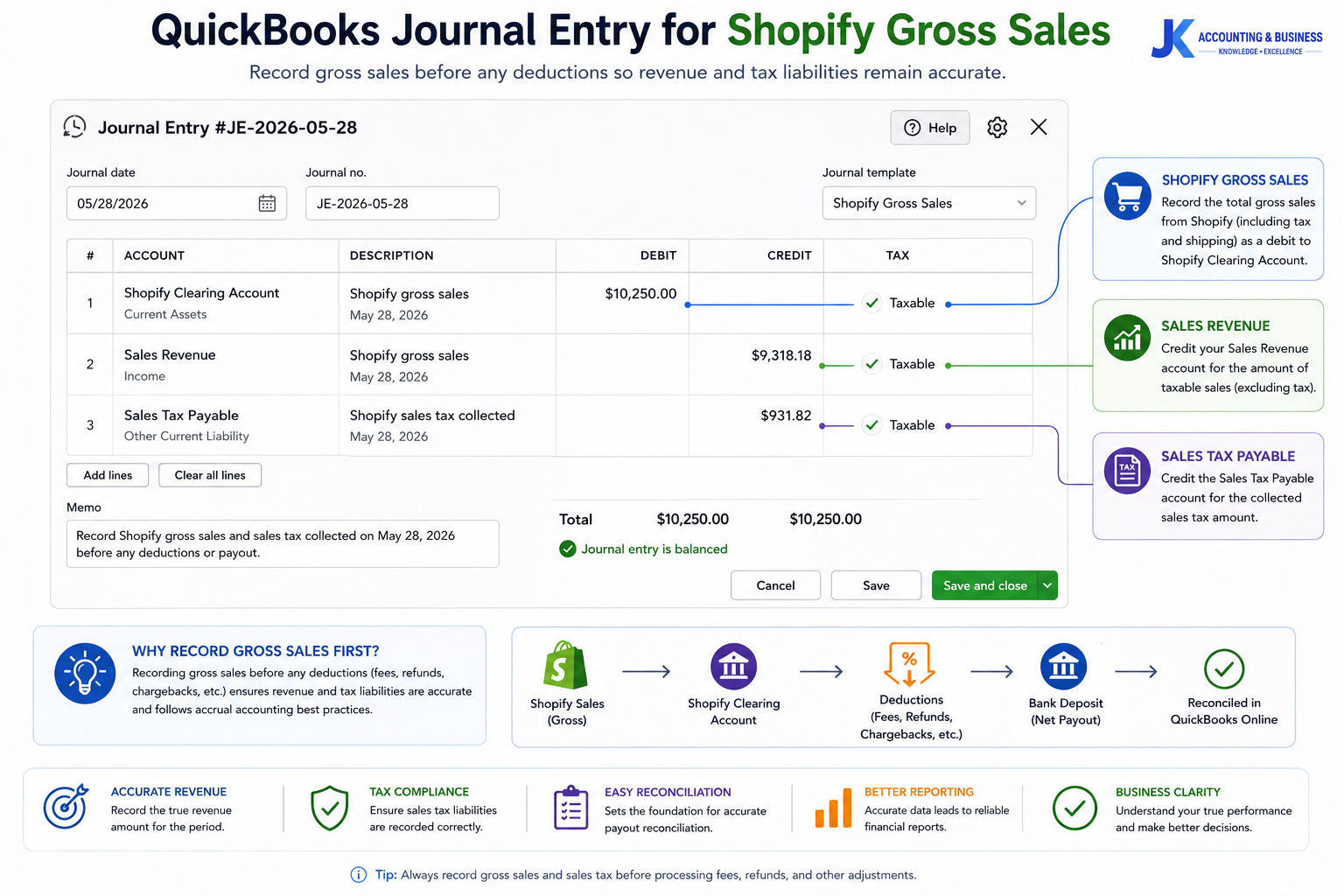
Record Shopify gross sales and sales tax using a QuickBooks Online journal entry before processing fees, refunds, and other payout adjustments. This creates the foundation for accurate Shopify payout reconciliation.
Step 2: Record Shopify Payments Processing Fees
- + New → Journal Entry
- Debit Merchant Processing Fees
- Credit Shopify Clearing Account
Step 3: Record Refunds and Discounts
- + New → Journal Entry
- Debit Sales Returns & Allowances or Discounts Given
- Credit Shopify Clearing Account
Step 4: Record Shipping Income
- + New → Journal Entry
- Debit Shopify Clearing Account
- Credit Shipping Income
Step 5: Record Chargebacks and Adjustments
- + New → Journal Entry
- Debit Chargeback Expense or Miscellaneous Adjustments
- Credit Shopify Clearing Account
Step 6: Match the Net Shopify Payout
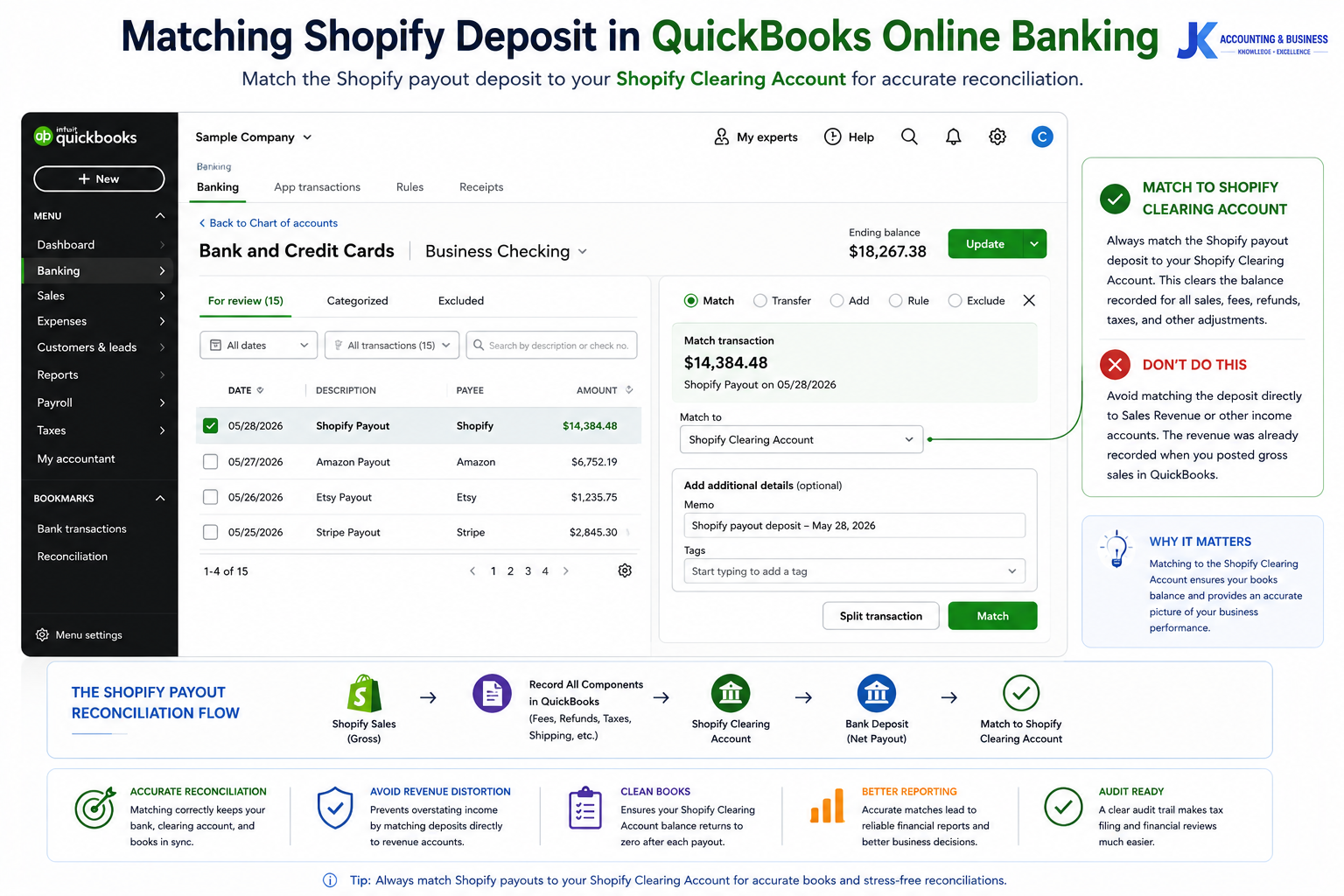
The final bank deposit should be matched against the Shopify Clearing Account rather than being categorized as direct sales revenue.
- Transactions → Bank Transactions
- or Reconcile
- Locate the Shopify bank deposit.
- Match or categorize it to the Shopify Clearing Account.
- Confirm the clearing account balance returns to zero for the payout period.
Best Practice
Never skip directly to matching the bank deposit. Always record gross sales, fees, refunds, taxes, shipping income, and other adjustments first. This approach gives you accurate financial statements, a complete audit trail, and significantly reduces reconciliation issues during month-end close.Example Journal Entries for a Shopify Payout
(A complete example showing how each Shopify payout component is recorded in QuickBooks Online.)
Each transaction within a Shopify payout is recorded separately before the final bank deposit clears the Shopify Clearing Account.
Example Shopify Payout Summary
- Gross Sales: $10,000.00
- Sales Tax Collected: $700.00
- Shopify Payments Fees: $320.00
- Customer Refunds: $450.00
- Shipping Income: $250.00
- Chargeback Fees: $75.00
- Net Shopify Payout: $8,705.00
Journal Entries
| Date | Account | Debit | Credit | Purpose |
|---|---|---|---|---|
| MM/DD/YYYY | Shopify Clearing Account | $10,700.00 | Record gross sales and sales tax collected. | |
| MM/DD/YYYY | Sales Revenue | $10,000.00 | Recognize gross product sales. | |
| MM/DD/YYYY | Sales Tax Payable | $700.00 | Record sales tax liability. | |
| MM/DD/YYYY | Merchant Processing Fees | $320.00 | Record Shopify Payments processing fees. | |
| MM/DD/YYYY | Shopify Clearing Account | $320.00 | Reduce clearing account. | |
| MM/DD/YYYY | Sales Returns & Allowances | $450.00 | Record customer refunds. | |
| MM/DD/YYYY | Shopify Clearing Account | $450.00 | Reduce clearing account. | |
| MM/DD/YYYY | Shopify Clearing Account | $250.00 | Record shipping income received. | |
| MM/DD/YYYY | Shipping Income | $250.00 | Recognize shipping revenue. | |
| MM/DD/YYYY | Chargeback Expense | $75.00 | Record chargeback fees. | |
| MM/DD/YYYY | Shopify Clearing Account | $75.00 | Reduce clearing account. | |
| MM/DD/YYYY | Business Bank Account | $8,705.00 | Record the bank deposit received from Shopify. | |
| MM/DD/YYYY | Shopify Clearing Account | $8,705.00 | Clear the remaining balance. |
Why This Works
Notice that the bank deposit is not recorded as revenue. Revenue was already recognized when the gross sales were posted. The final deposit simply clears the outstanding balance in the Shopify Clearing Account. This approach keeps your Profit & Loss statement accurate while maintaining a complete audit trail for every payout.Verification Checklist
- ✔ Gross sales match the Shopify Sales Report.
- ✔ Processing fees agree with the Shopify Payout Report.
- ✔ Refunds are fully recorded.
- ✔ Shipping income is posted separately.
- ✔ Sales tax is recorded as a liability.
- ✔ Chargebacks and adjustments are recognized.
- ✔ Net payout matches the bank deposit.
- ✔ Shopify Clearing Account returns to a zero balance after reconciliation.
Best Practice
If your Shopify Clearing Account still has a balance after completing these journal entries, investigate for missing payouts, duplicate transactions, timing differences, or incorrectly mapped accounts before closing the accounting period.Manual vs. Automated Shopify Payout Reconciliation
(Choosing the right reconciliation approach as your Shopify business grows.)
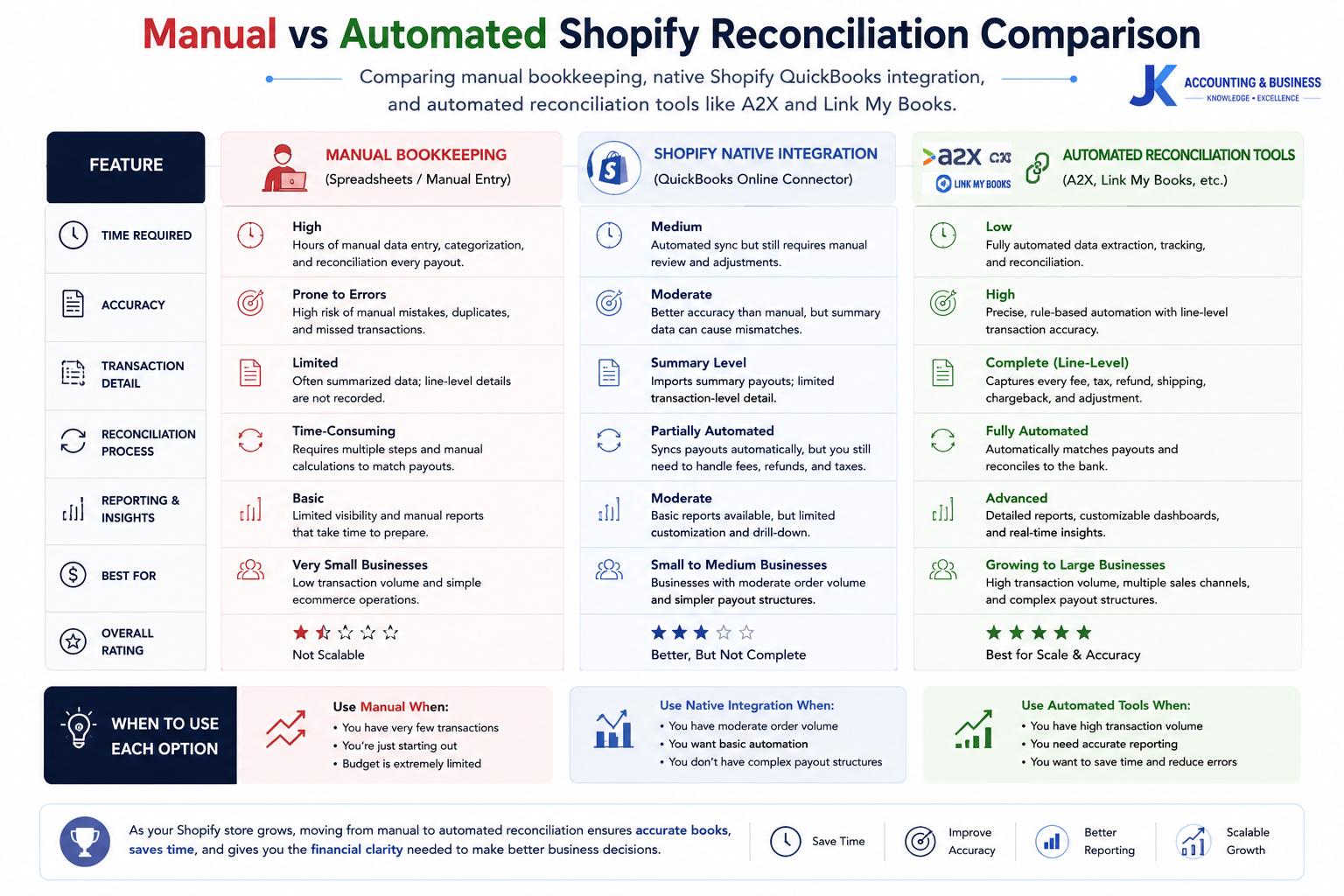
As Shopify transaction volumes increase, businesses often move from manual bookkeeping to automated reconciliation tools that improve efficiency and reporting accuracy.
| Feature | Manual Reconciliation | Native Shopify–QuickBooks Integration | A2X / Link My Books |
|---|---|---|---|
| Accuracy | High when performed carefully, but dependent on manual data entry. | Moderate. Suitable for basic workflows but may not capture every payout detail. | Very High. Designed to automate detailed payout reconciliation with minimal manual intervention. |
| Time Required | Several hours to multiple days each month, depending on transaction volume. | Moderate. Some manual review and adjustments are still required. | Low. Most reconciliations can be completed in minutes after setup. |
| Cost | Low software cost but higher staff time. | Typically included with Shopify or QuickBooks Online. | Monthly subscription cost, offset by reduced bookkeeping effort. |
| Best For | New businesses with low transaction volumes and simple accounting needs. | Businesses looking for a basic connection between Shopify and QuickBooks. | Growing ecommerce brands processing high transaction volumes or selling across multiple channels. |
| Advantages | Complete control over every transaction and no additional software. | Simple setup with direct platform integration. | Automated journal entries, accurate payout reconciliation, reduced manual work, and improved reporting. |
| Limitations | Time-consuming, repetitive, and more susceptible to human error. | Limited transaction detail and may require manual adjustments for complex scenarios. | Requires ongoing subscription fees and initial configuration. |
When Should You Automate?
Automation usually becomes worthwhile when your Shopify store processes hundreds of orders per month, sells internationally, operates across multiple sales channels, or requires detailed accrual-based accounting. At this stage, manually reconciling every payout often costs more in staff time than investing in dedicated reconciliation software.Best Practice
The right solution depends on your business—not just your software budget. If you’re reconciling only a few payouts each month, a manual process may be sufficient. As transaction volumes grow, evaluate whether the time spent on reconciliation outweighs the cost of automation. The goal is to maintain accurate financial records while allowing your finance team to focus on analysis rather than repetitive data entry.Common Shopify Reconciliation Errors That Quietly Distort Your Books
(The small bookkeeping mistakes that can lead to inaccurate financial reports, tax issues, and poor business decisions.)
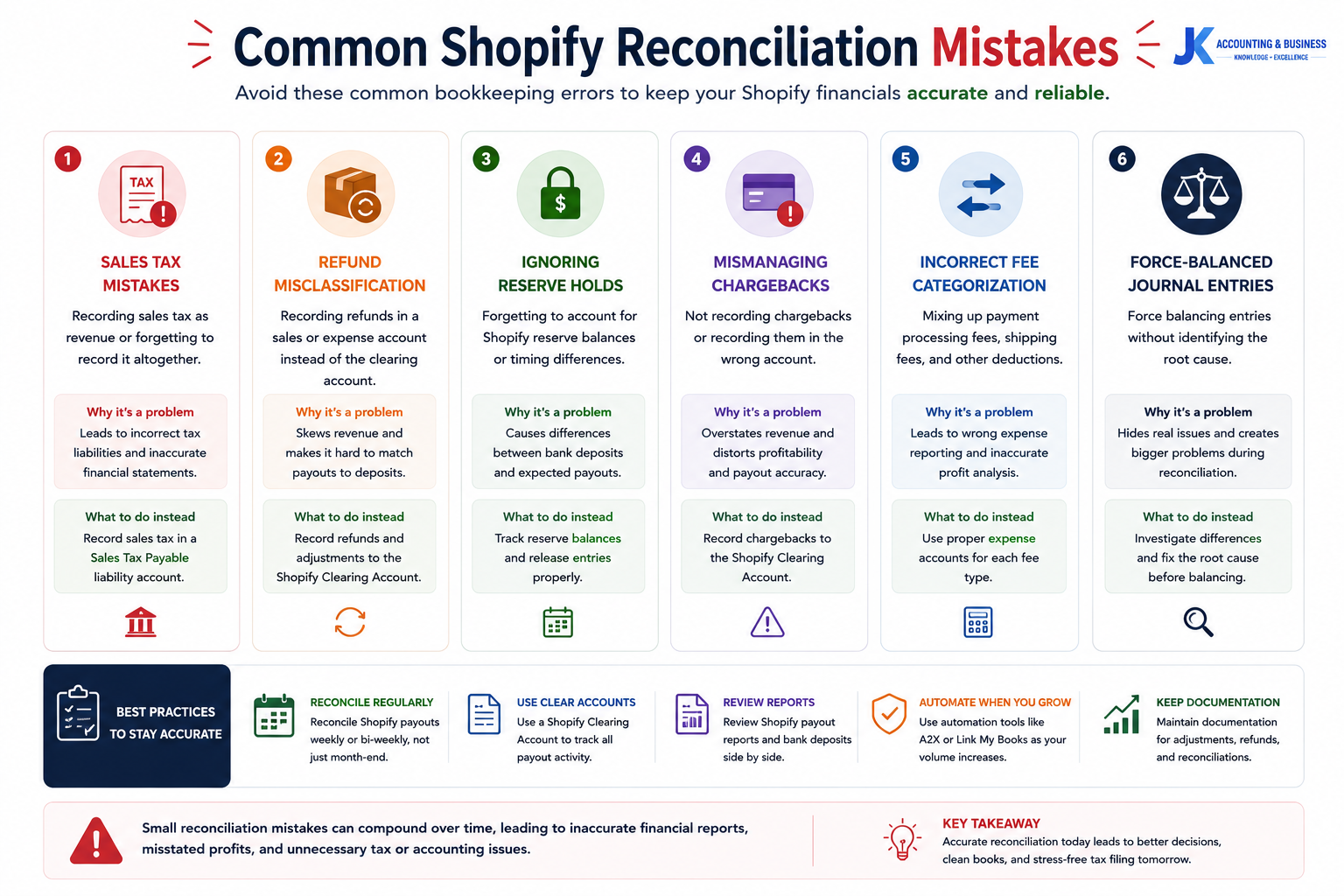
Small reconciliation mistakes can compound over time, leading to inaccurate financial reports and unnecessary tax or accounting issues.
1. Recording Sales Tax as Revenue
2. Netting Refunds Against Sales
3. Ignoring Shopify Reserve Holds
4. Misclassifying Chargeback Fees
5. Force-Balancing Shopify Payouts
6. Mixing Accrual and Cash Accounting
Best Practice
If your financial reports consistently show unexplained differences between Shopify, QuickBooks Online, and your bank account, resist the urge to make manual “plug” entries simply to force balances. Instead, trace the discrepancy back to its source. Missing refunds, incorrectly posted fees, duplicate journal entries, or unmapped payout adjustments are usually the underlying cause—and resolving them preserves the accuracy and integrity of your financial records.Monthly Shopify Reconciliation Checklist
(A simple month-end checklist to keep your Shopify and QuickBooks Online records accurate and audit-ready.)
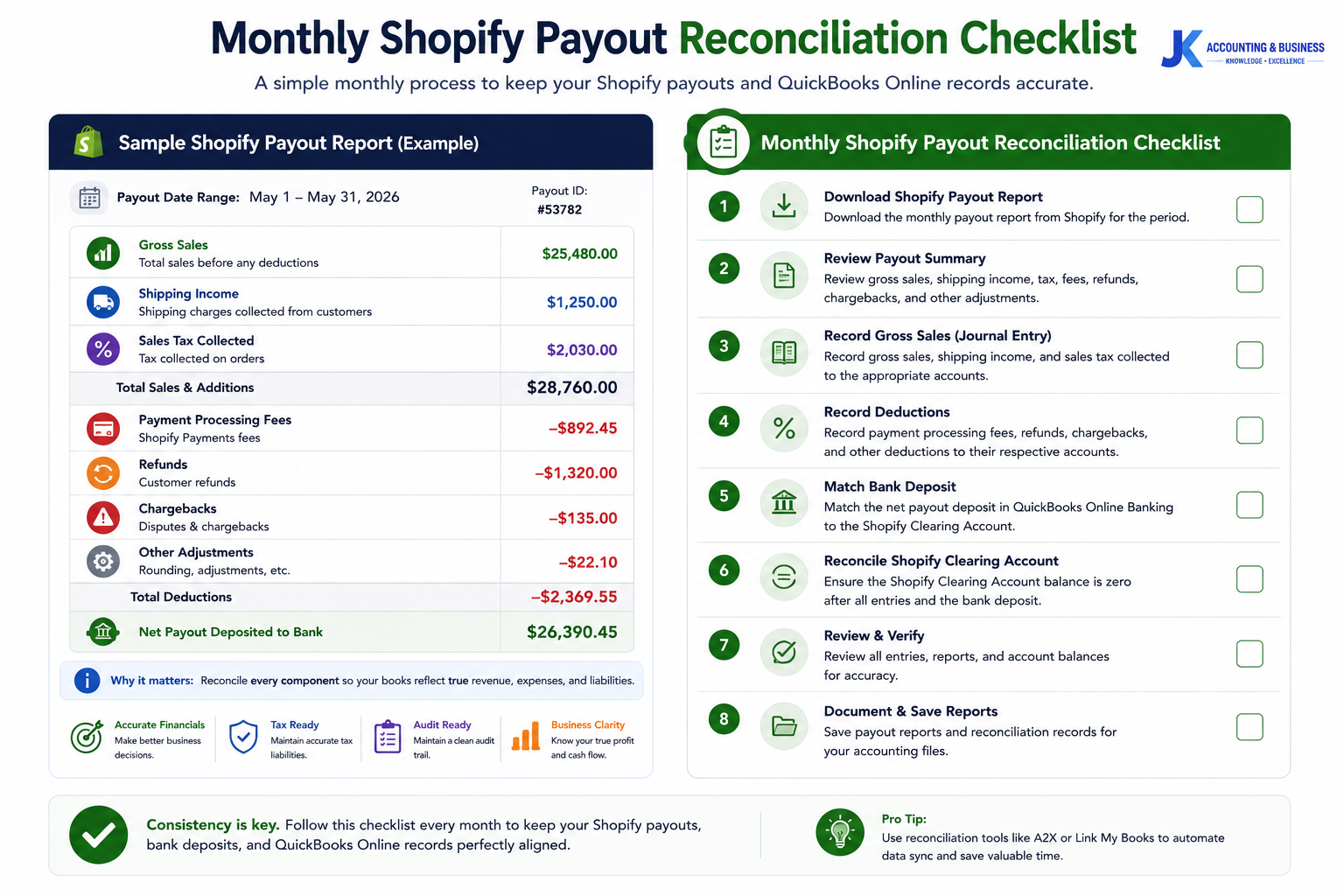
Following a consistent monthly reconciliation checklist helps ensure Shopify payouts, bank deposits, and QuickBooks Online records remain aligned.
Month-End Shopify Reconciliation Checklist
- ☐ Export the Shopify Payout Report. Download the detailed CSV payout report from Finance → Payouts in your Shopify Admin.
- ☐ Gather your bank statements. Obtain the statement for the bank account receiving Shopify payouts and confirm all expected deposits have been received.
- ☐ Verify gross sales. Compare Shopify sales reports with the revenue recorded in QuickBooks Online to ensure all sales have been captured correctly.
- ☐ Confirm sales tax is recorded correctly. Ensure all sales tax collected has been posted to the Sales Tax Payable liability account rather than being included in revenue.
- ☐ Record every Shopify fee. Verify payment processing fees, transaction fees, subscription charges, and chargeback fees are categorized as operating expenses.
- ☐ Review refunds and discounts. Confirm customer refunds, returns, and promotional discounts have been recorded in the appropriate contra-revenue accounts.
- ☐ Reconcile the Shopify Clearing Account. After posting all journal entries, verify the clearing account returns to a zero balance (or contains only expected timing differences).
- ☐ Match bank deposits. Match every Shopify payout appearing in your QuickBooks bank feed to the Shopify Clearing Account instead of recording it as direct revenue.
- ☐ Investigate any discrepancies. Review unmatched transactions, duplicate journal entries, missing refunds, reserve holds, or payout adjustments before closing the month.
- ☐ Document manual adjustments. Keep supporting notes and documentation for any corrections or journal entries made during reconciliation to maintain a clear audit trail.
What a Successful Reconciliation Looks Like
- ✔ Shopify gross sales match QuickBooks revenue.
- ✔ Sales tax is recorded as a liability.
- ✔ Processing fees, refunds, and chargebacks are categorized correctly.
- ✔ Every Shopify payout matches a corresponding bank deposit.
- ✔ The Shopify Clearing Account has a zero balance after reconciliation.
- ✔ Financial reports accurately reflect your business performance for the month.
Best Practice
Schedule a recurring reconciliation at the end of each month rather than waiting until quarter-end or year-end. Regular reviews make discrepancies easier to identify, reduce the risk of compounding errors, and help ensure your financial statements are always ready for management reporting, tax preparation, or external review.Additional Resources & References
(Continue learning about Shopify accounting, QuickBooks Online, and ecommerce bookkeeping best practices.)
Related JK Cloud Ledger Guides
- Shopify Accounting & Bookkeeping Guide Learn how to build an accurate accounting workflow for your Shopify store, from recording sales to month-end financial reporting.
- QuickBooks Online for Ecommerce A complete guide to setting up QuickBooks Online for ecommerce businesses, including chart of accounts, integrations, and bookkeeping best practices.
- Ecommerce Reconciliation & Bookkeeping Guide Discover reconciliation strategies for Shopify, Amazon, Stripe, PayPal, and other ecommerce payment platforms.
- Common Ecommerce Bookkeeping Mistakes (USA 2026) Learn how to identify and avoid the bookkeeping mistakes that commonly lead to inaccurate financial reporting and tax issues.
External References
The information presented in this guide is supported by official documentation and trusted accounting resources, including:- Shopify Help Center. Viewing and Exporting Shopify Payments Payout Details. https://help.shopify.com/
- Shopify Help Center. Payout Reconciliation Report. https://help.shopify.com/
- Intuit QuickBooks. QuickBooks Online Help & Community – Clearing Accounts and Bank Reconciliation. https://quickbooks.intuit.com/
- Saasant. How to Reconcile Shopify Transactions in QuickBooks Online. https://www.saasant.com/
- Synder. Manual Shopify Clearing Account Reconciliation. https://synder.com/
- Bench Accounting. Understanding Form 1099-K and Ecommerce Merchant Fees. https://www.bench.co/
- Internal Revenue Service (IRS). Understanding Your Form 1099-K. https://www.irs.gov/businesses/understanding-your-form-1099-k
- Internal Revenue Service (IRS). Publication 334 – Tax Guide for Small Business. https://www.irs.gov/forms-pubs/about-publication-334